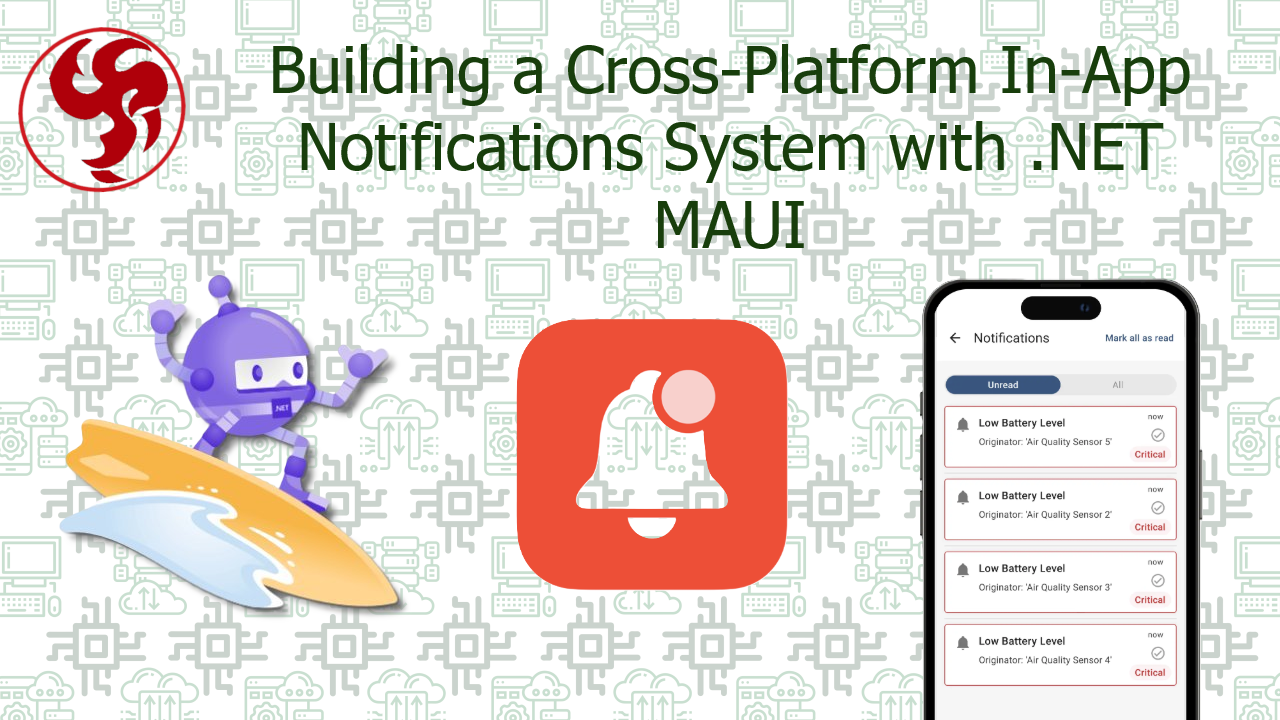
Building a Cross-Platform In-App Notifications System with .NET MAUI
🔔 Building a Cross-Platform In-App Notifications System with .NET MAUI
Real-Time UX Without Leaving Your App
Push notifications are great—but they’re out-of-app by nature. Modern apps also need in-app notifications: contextual messages that appear while the user is actively using your application.
With .NET MAUI, you can design a clean, reusable, cross-platform notification system that works consistently across Android, iOS, and Windows—without relying on external services.
In this guide, we’ll build a scalable in-app notifications layer with:
- 🧩 Decoupled architecture
- ⚡ Real-time delivery
- 🎨 Custom UI overlays
- 🔄 Queueing & prioritization
🧠 Why In-App Notifications?
Unlike push notifications, in-app notifications:
- Appear instantly inside the UI ⚡
- Don’t require OS permissions 🔐
- Are fully customizable 🎨
- Can be contextual (based on user actions) 👉 Examples:
- “Item added to cart” 🛒
- “Connection lost” ⚠️
- “Saved successfully” ✅
🏗️ Architecture Overview
A robust system should look like this:
ViewModels / Services
        ↓
INotificationService (Abstraction)
        ↓
NotificationManager (Queue + State)
        ↓
UI Layer (Overlay / Toast / Banner)
🧩 Step 1: Define the Contract
public interface INotificationService
{
    void Show(NotificationMessage message);
}
📦 Notification Model
public class NotificationMessage
{
    public string Title { get; set; } = string.Empty;
    public string Message { get; set; } = string.Empty;
    public NotificationType Type { get; set; }
    public int Duration { get; set; } = 3000;
}

public enum NotificationType
{
    Info,
    Success,
    Warning,
    Error
}
⚙️ Step 2: Notification Manager (Queue System)
public class NotificationManager
{
    private readonly Queue<NotificationMessage> _queue = new();
    private bool _isProcessing;

    public event Action<NotificationMessage>? OnNotification;

    public void Enqueue(NotificationMessage message)
    {
        _queue.Enqueue(message);
        ProcessQueue();
    }

    private async void ProcessQueue()
    {
        if (_isProcessing) return;

        _isProcessing = true;

        while (_queue.Count > 0)
        {
            var message = _queue.Dequeue();
            OnNotification?.Invoke(message);

            await Task.Delay(message.Duration);
        }

        _isProcessing = false;
    }
}
🧩 Step 3: Service Implementation
public class NotificationService : INotificationService
{
    private readonly NotificationManager _manager;

    public NotificationService(NotificationManager manager)
    {
        _manager = manager;
    }

    public void Show(NotificationMessage message)
    {
        _manager.Enqueue(message);
    }
}
🎨 Step 4: UI Layer (Overlay Toast)
XAML Layout
<Grid>
    <!-- Main Content -->

    <StackLayout
        x:Name="NotificationContainer"
        VerticalOptions="Start"
        Spacing="10"
        Padding="10" />
</Grid>
Code-Behind Binding
public partial class MainPage : ContentPage
{
    private readonly NotificationManager _manager;

    public MainPage(NotificationManager manager)
    {
        InitializeComponent();
        _manager = manager;

        _manager.OnNotification += ShowNotification;
    }

    private void ShowNotification(NotificationMessage message)
    {
        MainThread.BeginInvokeOnMainThread(async () =>
        {
            var view = CreateNotificationView(message);

            NotificationContainer.Children.Add(view);

            await view.FadeTo(1, 250);

            await Task.Delay(message.Duration);

            await view.FadeTo(0, 250);

            NotificationContainer.Children.Remove(view);
        });
    }
}
🎨 Notification View Factory
private View CreateNotificationView(NotificationMessage message)
{
    return new Frame
    {
        BackgroundColor = GetColor(message.Type),
        CornerRadius = 10,
        Padding = 10,
        Content = new Label
        {
            Text = message.Message,
            TextColor = Colors.White
        },
        Opacity = 0
    };
}
⚖️ In-App vs Push Notifications
📊 Comparative Table
| Feature | In-App 🔔 | Push 📡 |
|---|---|---|
| Works in foreground | ✅ | ❌ |
| Requires permission | ❌ | ✅ |
| Custom UI | ⭐⭐⭐⭐⭐ | ⭐⭐ |
| Real-time context | ⭐⭐⭐⭐⭐ | ⭐⭐ |
| Background delivery | ❌ | ✅ |
🧠 Best Practices
✅ 1. Queue Notifications
Avoid overlapping messages.
✅ 2. Keep Them Short
2–4 seconds is ideal ⏱️
✅ 3. Use Visual Hierarchy
Color-code by type:
- 🟢 Success
- 🔴 Error
- 🟡 Warning
✅ 4. Avoid Blocking UI
Never use modal dialogs for simple feedback.
✅ 5. Combine with Push
Use push to trigger, in-app to display contextually.
🧱 Advanced Patterns (PRO Level)
🔄 Real-Time Integration (SignalR)
hubConnection.On<string>("Notify", message =>
{
    notificationService.Show(new NotificationMessage
    {
        Message = message,
        Type = NotificationType.Info
    });
});
🎯 Priority System
public int Priority { get; set; }
Sort queue before display.
🎛️ Animation Enhancements
- Slide-in from top
- Scale bounce
- Blur background
🔗 Reference Links
🔔 Final Thoughts
A well-designed in-app notification system turns your app from reactive… into communicative. 👉 It guides users
👉 It confirms actions
👉 It prevents confusion
Was this useful?
Sign in to react. Guest comments are still welcome.
Related Posts

Comments (0)
No approved comments yet.